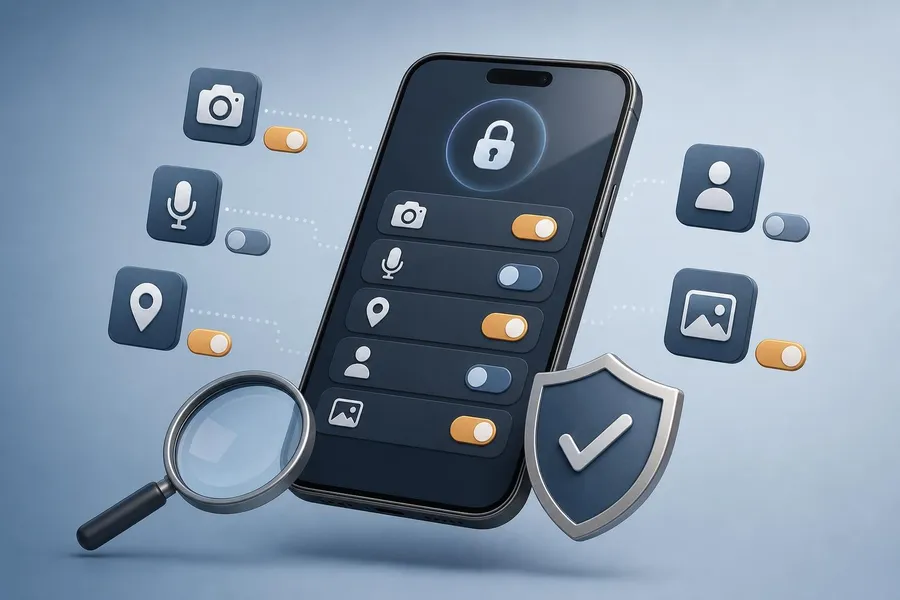
What are app permissions? App permissions are the controls that let an app use parts of your phone or personal data, such as your camera, microphone, location, contacts, photos, Bluetooth, or notifications. The app permissions worth a second look on your phone are the ones that reveal sensitive information, run in the background, or no longer match how you use the app. This guide explains which permissions are usually safe, which ones deserve a reset, and how to review them on iPhone and Android without breaking the features you actually need.
Start with location, camera, and microphone. These permissions can expose where you are, what you are doing, or what is happening around you.
Use the least access that still works. One-time, while using, approximate location, and limited photo access are often enough.
Check permissions after updates. Apps can add new features, and your old permission choices may no longer fit.
Delete apps you no longer use. Revoking permissions helps, but removing unused apps reduces risk more completely.
Review store privacy details. App Store privacy labels and Google Play Data safety information can help you compare similar apps before installing.
Why app permissions deserve a second look
A permission is not automatically suspicious. A maps app needs location, a video meeting app needs microphone access, and a banking app may need camera access to scan a check or ID. The issue is scope. If an app has broader access than it needs, it may collect more information than you expect, keep more data available to the app, or create more exposure if the app account, developer, or third-party software inside the app is compromised.
A useful standard is the least privilege principle from NIST: access should be limited to the minimum needed to complete the task. For a phone, that means giving an app permission only when the feature makes sense, and choosing a narrower option when your operating system offers one.
This matters because permissions can accumulate silently over months or years. You may grant a coupon app location access during a shopping trip, allow a social app access to all photos, or approve contacts for a messaging service you later stop using. A quarterly review keeps those old decisions from becoming permanent defaults.
Which app permissions are usually safe?
Some permissions are low risk when they clearly support the feature you requested. They still deserve attention, but they do not always need to be denied. The key question is whether the permission is tied to a visible action you understand. If the answer is yes, the permission may be reasonable. If the app cannot explain why it needs the access, reset it.
Permission | Usually reasonable when | Worth resetting when |
|---|---|---|
Notifications | You rely on alerts for messages, deliveries, calendar events, banking alerts, or security codes. | The app sends ads, engagement nudges, or alerts you rarely act on. |
Photos | You upload selected images, edit photos, or save receipts. | The app has access to your entire library but only needs one image at a time. |
Calendar and reminders | The app creates appointments, travel plans, medication reminders, or work tasks. | The app only needs to show dates inside the app, not read your personal calendar. |
Bluetooth or nearby devices | You connect headphones, fitness trackers, smart home products, cars, or medical devices. | A game, coupon app, or content app asks for it without a clear device connection. |
Camera and microphone | You record, scan, join calls, deposit checks, translate signs, or use accessibility features. | The app keeps access even though you rarely use its camera or voice features. |
Permissions that deserve a reset first
Location access
Location is often the most revealing permission because it can show home, work, school, shopping habits, places of worship, clinics, and travel routines. On Android, Android Help explains that location permissions can be set by app and may include options such as all the time, only while using the app, ask every time, or not allowed. On iPhone, location access can also be narrowed, and precise location can be turned off for many apps.
A good default is to avoid always-on location unless the app truly needs it in the background. Navigation, rideshare, weather, and delivery apps usually work with location only while in use. A fitness tracker, family safety app, or lost-device service may justify broader access, but only if you actively use that feature.
Camera and microphone
Camera and microphone access should be connected to a visible action, such as taking a photo, scanning a QR code, recording a voice note, joining a video call, or depositing a check. Apple Support notes that iPhone apps must request permission before using camera or microphone access, and iPhone shows indicators when those sensors are in use.
The safest habit is to deny these permissions until you need the feature. If an app asks for the microphone before you use any voice feature, or asks for camera access during account setup without explanation, choose not now if the option appears. You can turn it on later from settings.
Contacts and photos
Contacts can reveal information about people who never agreed to share data with the app. Grant contacts only when the core service depends on finding friends, syncing address books, or identifying callers. If the app only wants to invite friends, consider skipping access and sharing manually.
Photo access is similar. A photo editor or printing service needs image access, but it may not need your entire library. When available, choose selected photos or limited access. That lets you upload what you intend without opening years of screenshots, documents, location-tagged images, and personal pictures.
Bluetooth, local network, and nearby devices
Bluetooth and local network permissions are easy to overlook because they sound technical. They are reasonable for smart speakers, home security cameras, printers, TVs, hearing aids, watches, cars, and connected health devices. They are less convincing for apps that do not pair with anything around you.
If a shopping, news, or entertainment app asks for nearby device access, look for a clear reason. Some stores use Bluetooth for in-store features, but you can usually deny the permission and still browse, read, or shop.
How to review app permissions on iPhone and Android
On iPhone
Apple groups many controls under Privacy & Security. You can review permissions by data type, such as Location Services, Camera, Microphone, Photos, Contacts, Bluetooth, and Local Network. You can also use App Privacy Report to see recent access to sensitive data and sensors, plus network activity, after the report has been enabled.
Open Settings, then choose Privacy & Security.
Tap a category such as Location Services, Camera, Microphone, Photos, Contacts, Bluetooth, or Local Network.
Review the apps listed under that category and turn off access that no longer makes sense.
For location, consider While Using the App and turn off Precise Location when an approximate area is enough.
Turn on App Privacy Report if you want a clearer view of recent sensor and data access.
On Android
Android settings vary slightly by phone maker, but modern Android phones include a privacy dashboard. Google says the dashboard can show which apps are accessing data, which permissions they are using, and when that access happens. It can also help you manage camera, microphone, calendar, and other permissions.
Open Settings, then choose Security and privacy or Privacy.
Open Privacy dashboard if your device offers it.
Select a permission such as Location, Camera, Microphone, Contacts, Calendar, or Files and photos.
Tap an app to change its access, using options such as allow only while using, ask every time, or do not allow when available.
For location, turn off precise location when a city-level or neighborhood-level estimate is enough.
A practical app permission reset checklist
You do not need to review every setting every day. A simple routine catches most problems. Do this when you set up a new phone, after major operating system updates, after installing several new apps, and any time an app behaves unexpectedly.
Remove unused apps first. If you have not opened an app in months, uninstall it rather than fine-tuning its permissions.
Reset location broadly. Move most apps from always allowed to while using, ask every time, or not allowed.
Limit photos. Use selected-photo access for social, editing, shopping, and printing apps when possible.
Deny contacts by default. Share contacts only with apps that clearly need them for communication or caller identification.
Recheck microphone and camera. Keep them enabled only for apps where you regularly record, scan, call, or capture.
Review app store disclosures. Before replacing an app, compare privacy details in the App Store or the Google Play Data safety section.
How to decide whether a permission matches the app
The right permission depends on the job the app performs. Think in terms of feature, timing, and sensitivity. If the app needs access only during a visible task, choose a temporary or while-using option. If the permission supports passive monitoring, such as emergency location sharing or fitness tracking, decide whether that constant access is worth the benefit.
App type | Permission that may make sense | Better default |
|---|---|---|
Navigation and rideshare | Precise location | While using the app, unless background trip sharing is needed. |
Weather | Approximate location | Approximate, while using, or a saved ZIP code instead of location access. |
Banking | Camera for mobile deposit or identity verification | Allow camera only if you use deposit, scan, or ID features. |
Social media | Camera, microphone, selected photos | Deny contacts and limit photos unless you actively use syncing or uploading. |
Flashlight, calculator, casual games | Usually few or none beyond notifications | Deny location, contacts, microphone, and camera unless the feature is obvious. |
Smart home | Bluetooth, local network, location for setup | Allow during setup, then reduce access if ongoing control still works. |
Common mistakes to avoid
Permission prompts often appear when you are trying to finish a task quickly, which makes it easy to tap Allow without thinking. A better approach is to pause for a few seconds and ask what feature will break if you deny the request. If you are not sure, deny it. Most legitimate apps will ask again when the feature actually needs the permission.
Leaving location set to always allowed for apps that only need it during active use.
Granting full photo library access when selected-photo access would be enough.
Approving contacts just to find friends, then never turning it off.
Ignoring permission requests from children’s apps, games, flashlight tools, and free utility apps.
Assuming an app store listing tells the whole story. Privacy labels and Data safety sections are useful, but you should still review actual phone settings.
The FTC has brought attention to sensitive data collection practices involving browsing and precise location data. For consumers, the practical lesson is simple: permissions are privacy choices, not just technical settings.
Frequently asked questions
Which app permission should I review first?
Start with location, camera, microphone, contacts, and photos. These permissions tend to expose the most sensitive information and are often granted during one-time setup moments.
Is it safe to deny permissions?
Usually, yes. Denying a permission may disable a specific feature, but you can often turn it back on later. If an app stops working entirely after you deny an unrelated permission, consider whether you trust that app.
Should I allow precise location?
Use precise location only when the app needs exact positioning, such as navigation, rideshare pickup, delivery tracking, or emergency features. Weather, store, and search apps often work with approximate location or a ZIP code.
Can apps use my camera or microphone without permission?
Modern iPhone and Android systems require apps to request camera and microphone permissions. You should still review which apps have access and watch for system indicators that show recent or active use.
What does selected-photo access mean?
Selected-photo access lets an app use only the photos you choose instead of your entire library. It is a good choice for social media, shopping, editing, printing, and marketplace apps.
How often should I review app permissions?
Review permissions every few months, after major phone updates, when you install many new apps, and before or after travel. Also review them if your battery, data usage, or notifications suddenly change.
Are app store privacy labels enough?
They are helpful, but they are not a substitute for phone settings. Use labels and Data safety information before installing, then use your phone’s privacy controls to limit access after installation.
Should kids’ apps get stricter permission settings?
Yes. For a child’s phone or tablet, be more conservative with location, contacts, camera, microphone, purchases, and notifications. Review both device-level permissions and any parental controls available for the account.
Conclusion
The best permission setting is the narrowest one that lets the app do what you actually need. Camera, microphone, and location access can be useful, but they should not remain open-ended by default. Contacts, photos, Bluetooth, local network, and notifications also deserve occasional cleanup because they can reveal habits, relationships, devices, and routines.
A quick reset can make your phone more private without making it harder to use. Delete apps you do not need, move location to while using or approximate, limit photo access, deny contacts unless essential, and turn on privacy dashboards or reports where available. App permissions are not a one-time setup choice. They are a maintenance habit that keeps your phone aligned with your real life.
Sources
Apple Support: Control access to hardware features on iPhone
Apple Support: About App Privacy Report
Android Help: Manage permissions from the privacy dashboard
Android Help: Manage location permissions for apps
NIST Computer Security Resource Center: Glossary definition of least privilege